Live — Setup Process

1

๐Ÿงช Create SAP BTP Subaccount

Note: This step is optional. You can use existing subaccount, if you already have one.

  1. Navigate to SAP BTP Cockpit.
  2. Select your global account, if prompted.
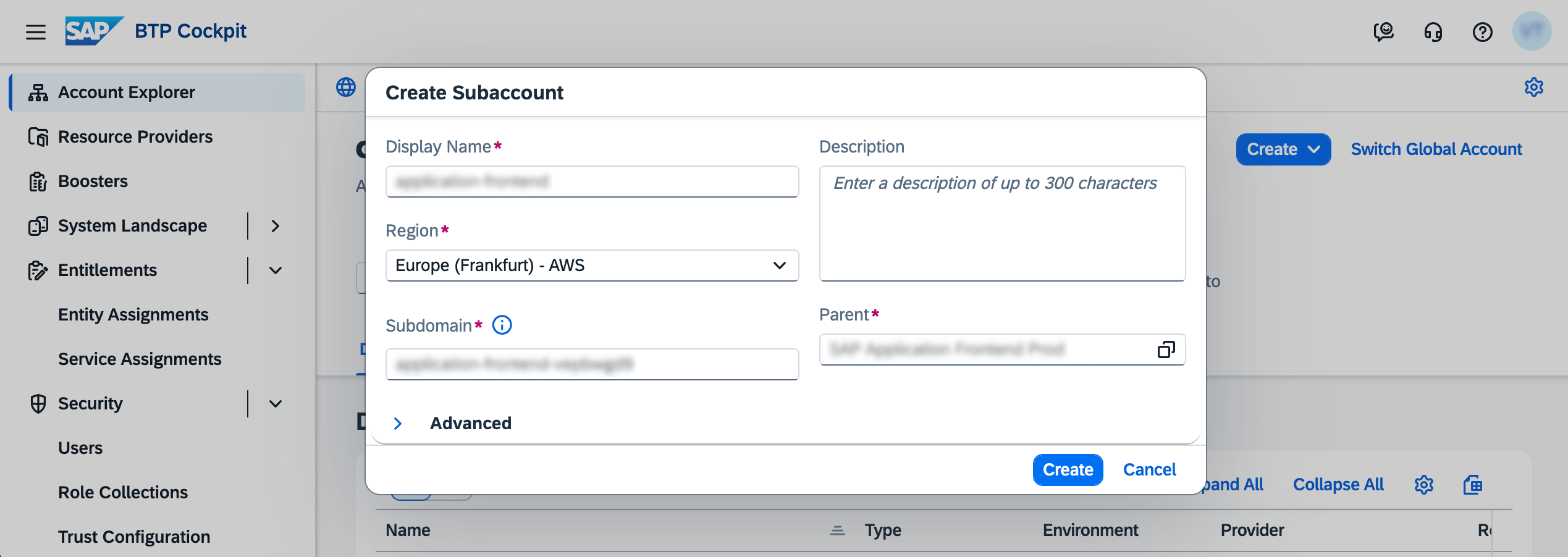
  3. Click Create and select Subaccount.
  4. Fill the form and click Create button.
  5. When subaccount is ready, click on it (in Account Explorer).
2

๐Ÿ” Set Up Identity Authentication (IAS)

Note: If you already have an existing IAS trust for application users, you can skip this step.
Configure Trust

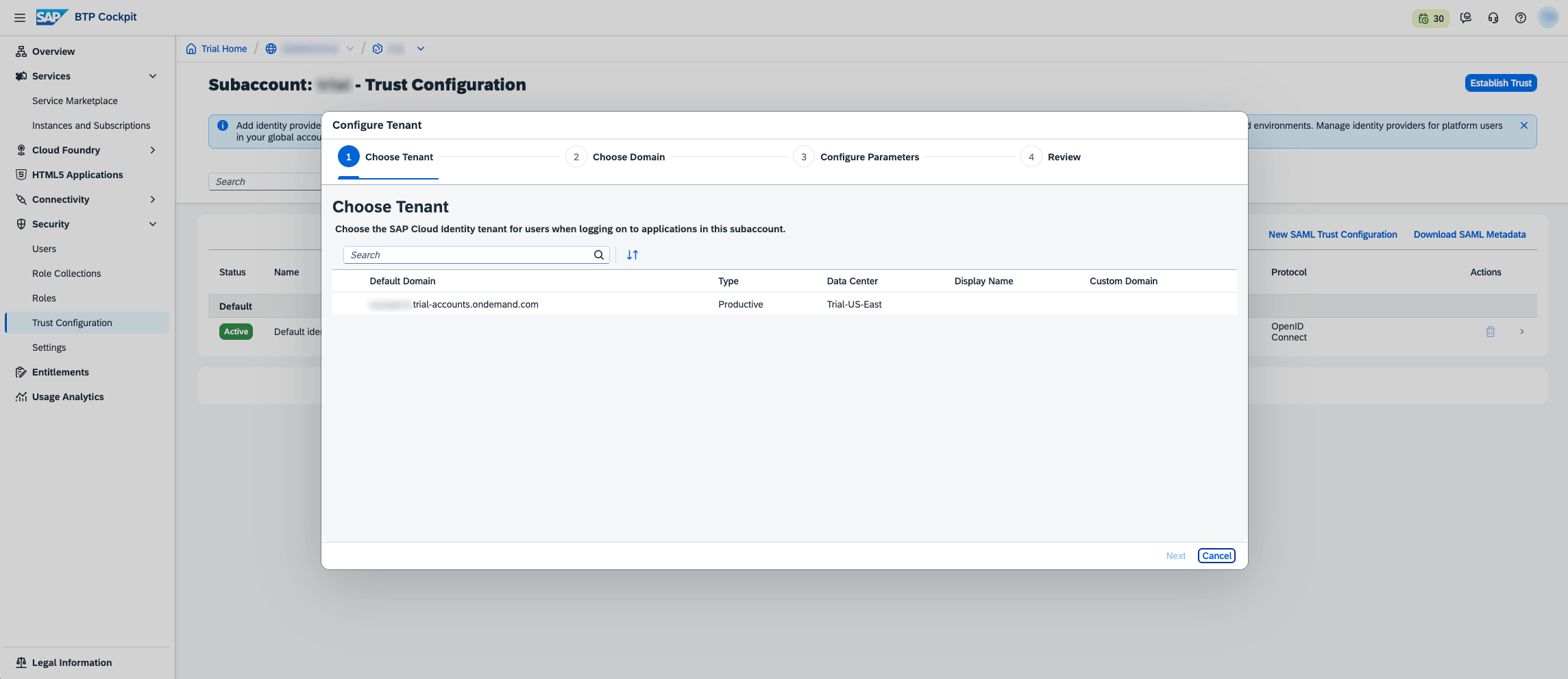
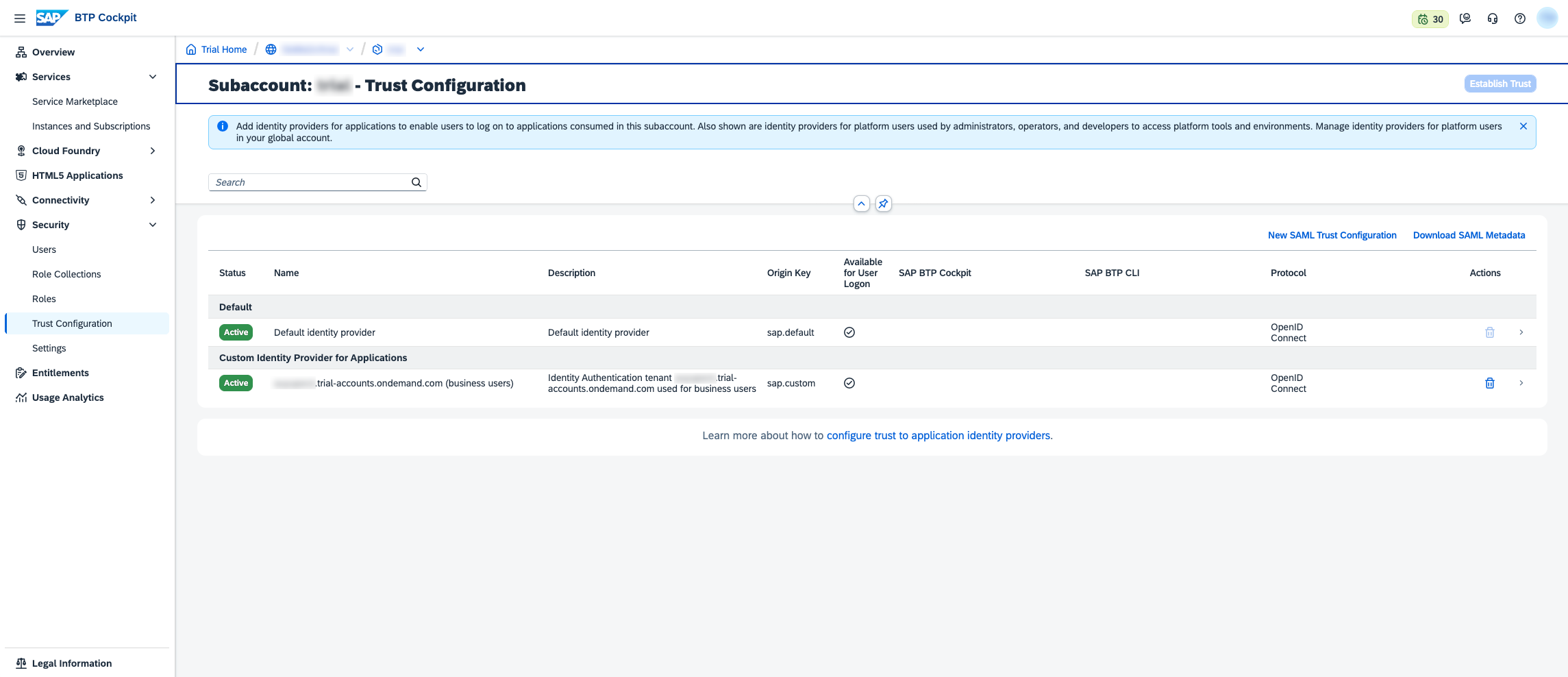
  1. Navigate to Security > Trust Configuration.
  2. Click Establish Trust.
  3. Choose your IAS tenant (e.g., auyupsrzi.accounts.ondemand.com) and continue setup.
3

๐Ÿ”” Subscribe to Application Frontend service

Assign Entitlements

  1. Navigate to Global Account (e.g., using breadcrumbs).
  2. Navigate to Entitlements > Entity Assignments.
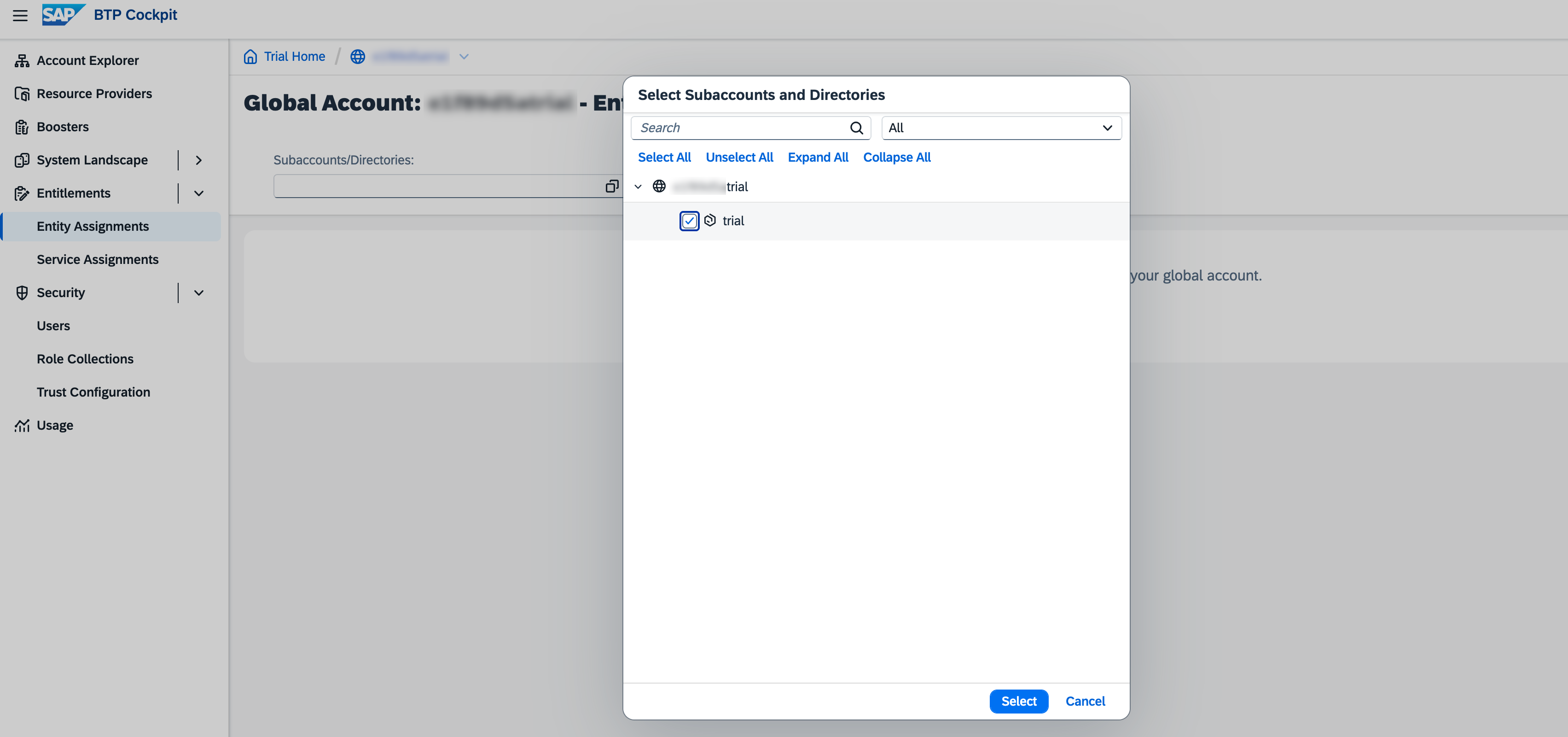
  3. Choose your subaccount in Subaccounts/Directories field.
  4. Click Edit.
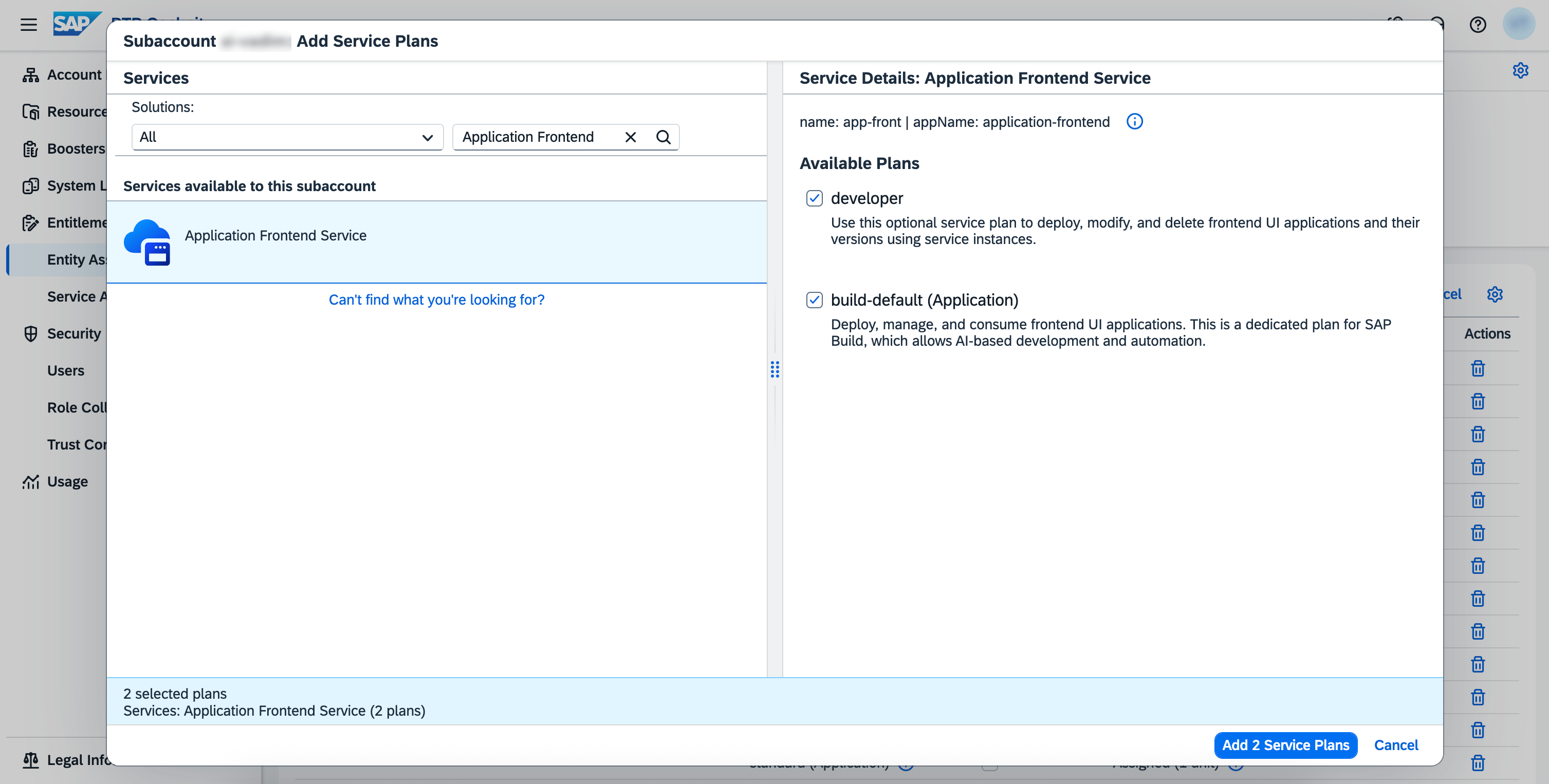
  5. Click Add Service Plans.
  6. Select Application Frontend Service.
  7. Select developer and build-default (Application) plans.
  8. Click Add 2 Service Plans.
  9. Click Save.
Select subaccount Add service plans

Subscribe

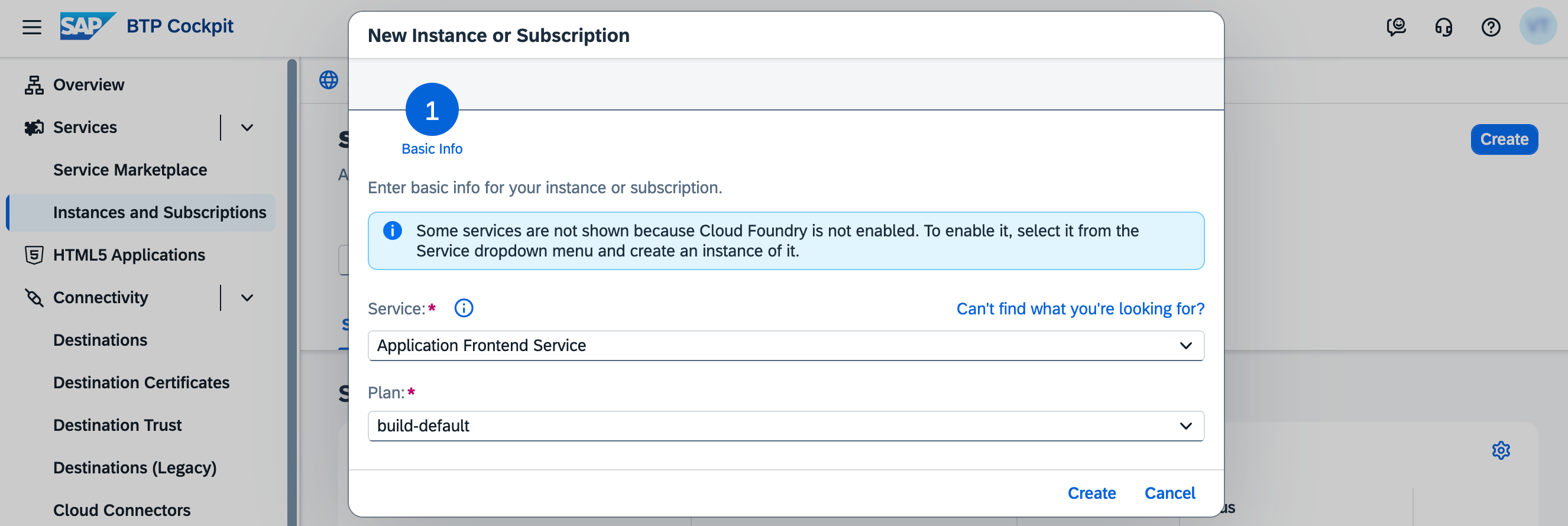
  1. Navigate to Account Explorer.
  2. Click on your subaccount card.
  3. Navigate to Services > Instances and Subscriptions.
  4. Click Create.
  5. Choose:
    • Service: Application Frontend Service
    • Plan: build-default
  6. Click Create.
Select subaccount
4

๐Ÿ” Grant Permissions

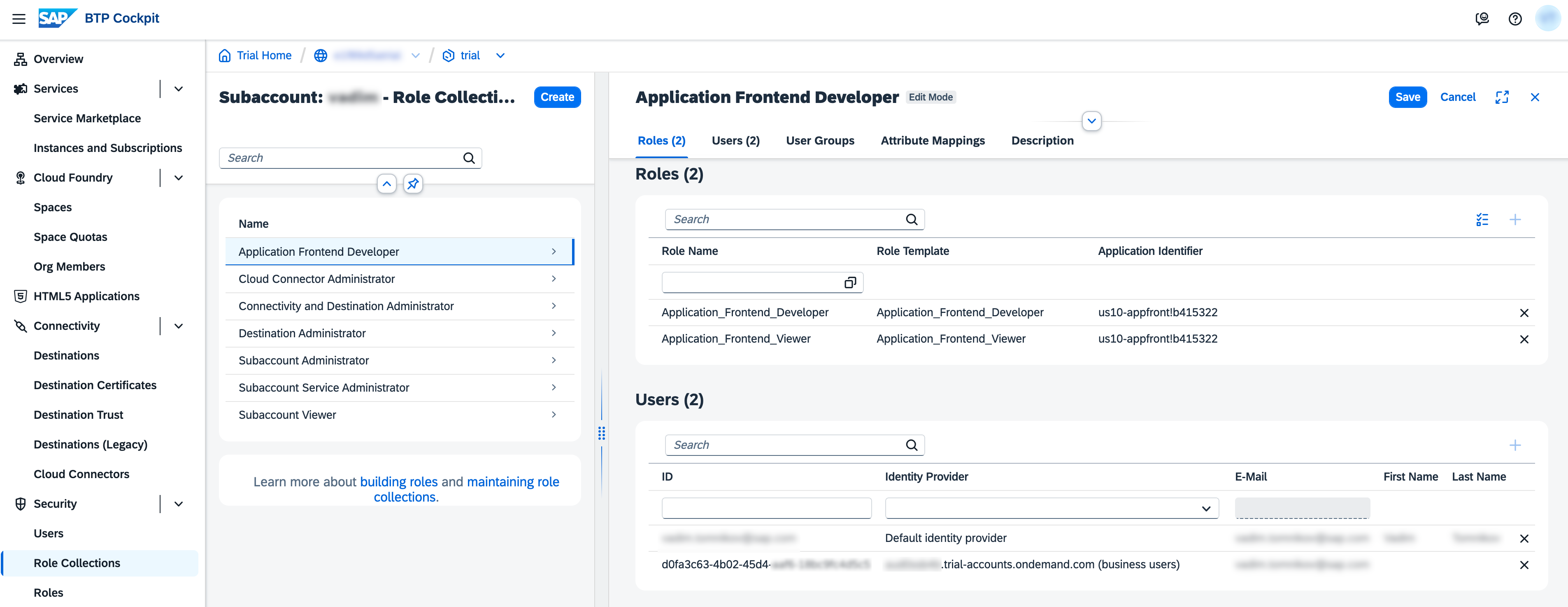
  1. Navigate to Security > Role Collections.
  2. Click Create.
  3. Enter role name: Application Frontend Developer.
  4. Click Create.
  5. Click on Application Frontend Developer row.
  6. Click Edit.
  7. Add the role:
    • Application_Frontend_Developer
  8. Add users:
    • Users from "Default identity provider" - for managing applications in BTP Cockpit
    • Users from "business users" identity provider - for CLI, API and runtime access
  9. Click Save.
  10. Create role collection