Trial — Setup Process

Note: Application Frontend service is currently available only in the US East (VA) - AWS region in SAP BTP Trial.
1

๐Ÿงช Create SAP BTP Trial Account

  1. Visit SAP BTP Trial page.
  2. Sign-in or create a new SAP Universal ID user.
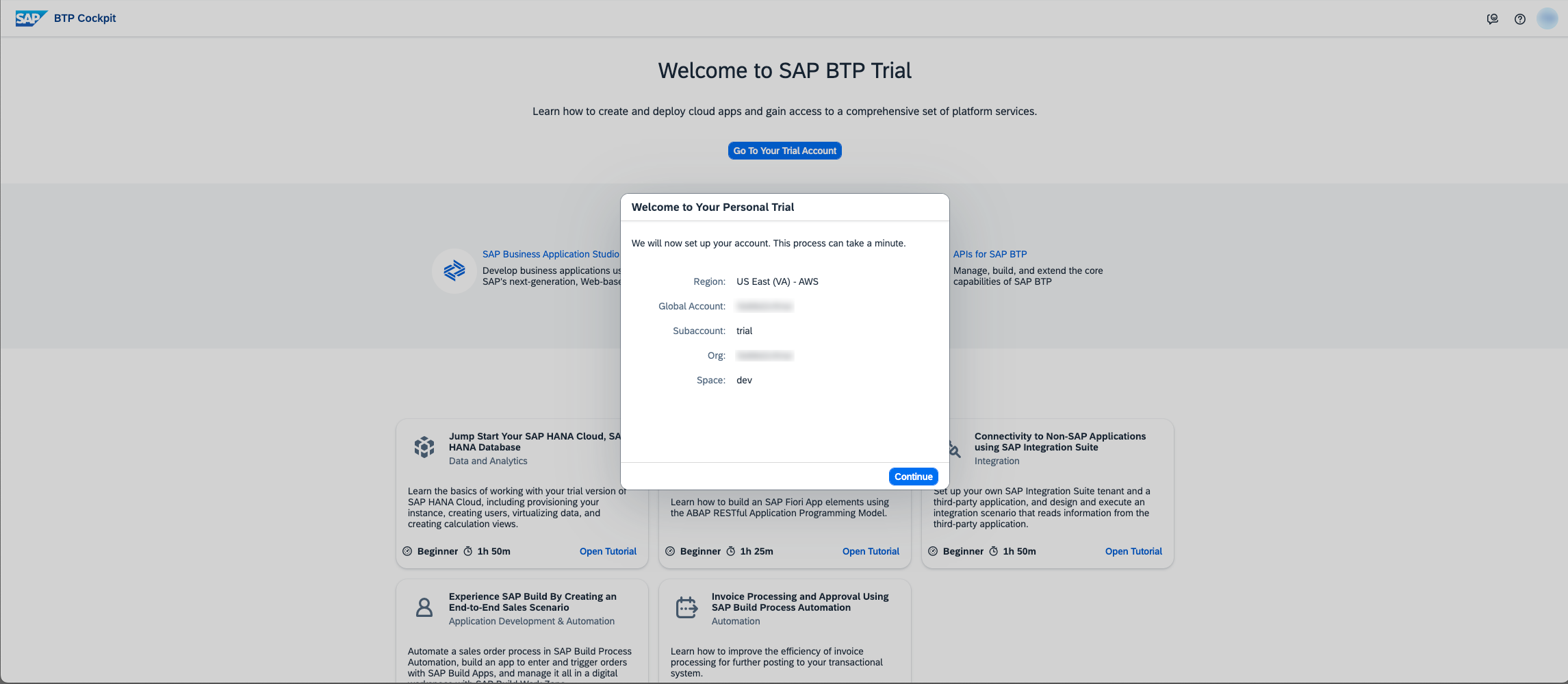
  3. When prompted, ensure your trial subaccount is created in US East (VA) region.
  4. After subaccount is created, click on "Go To Your Trial Account" button.

You'll be assigned to "Global Account Administrator" and "Subaccount Administrator" roles by default.

Cloud Foundry environment will be enabled for initial subaccount by default.

2

๐Ÿ”” Subscribe to Cloud Identity Services

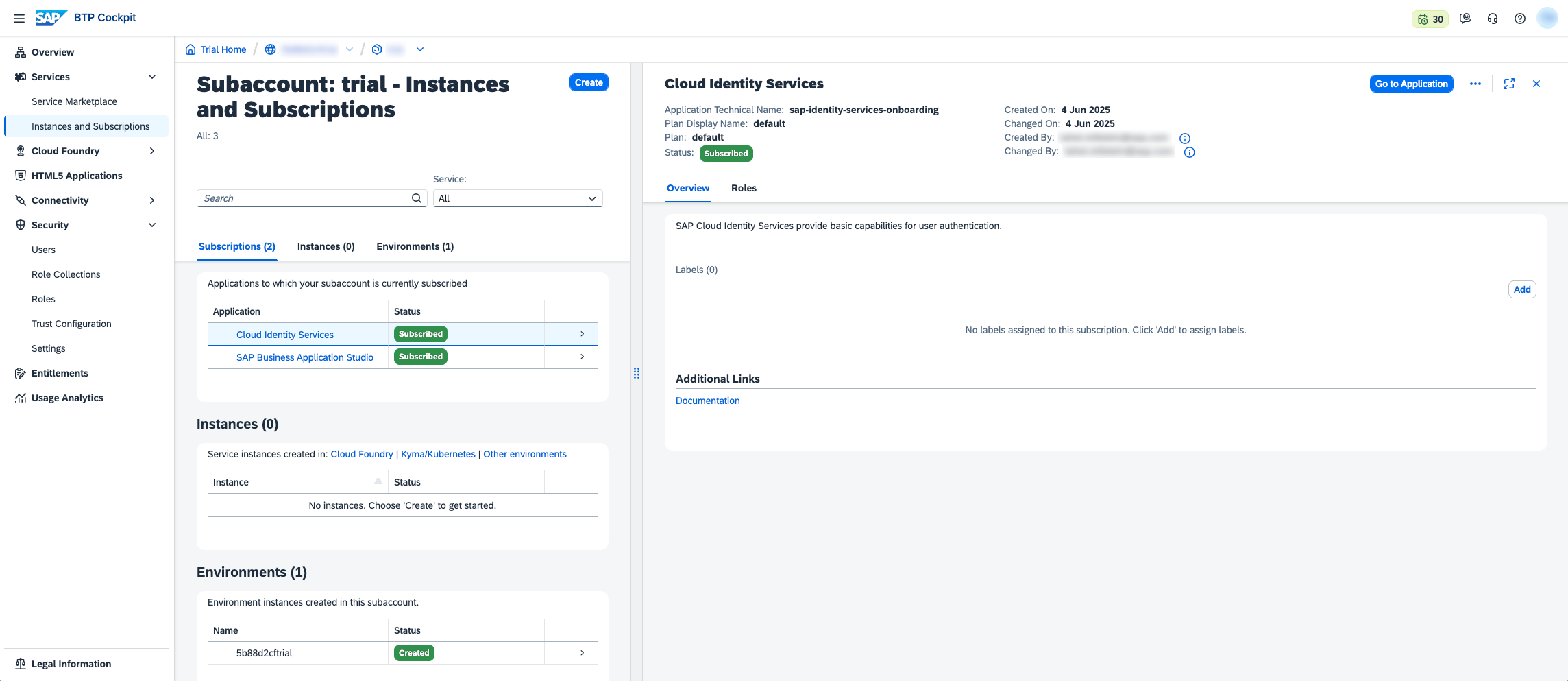
To provision IAS tenant for your trial account, subscribe to the Cloud Identity Services application in your subaccount.
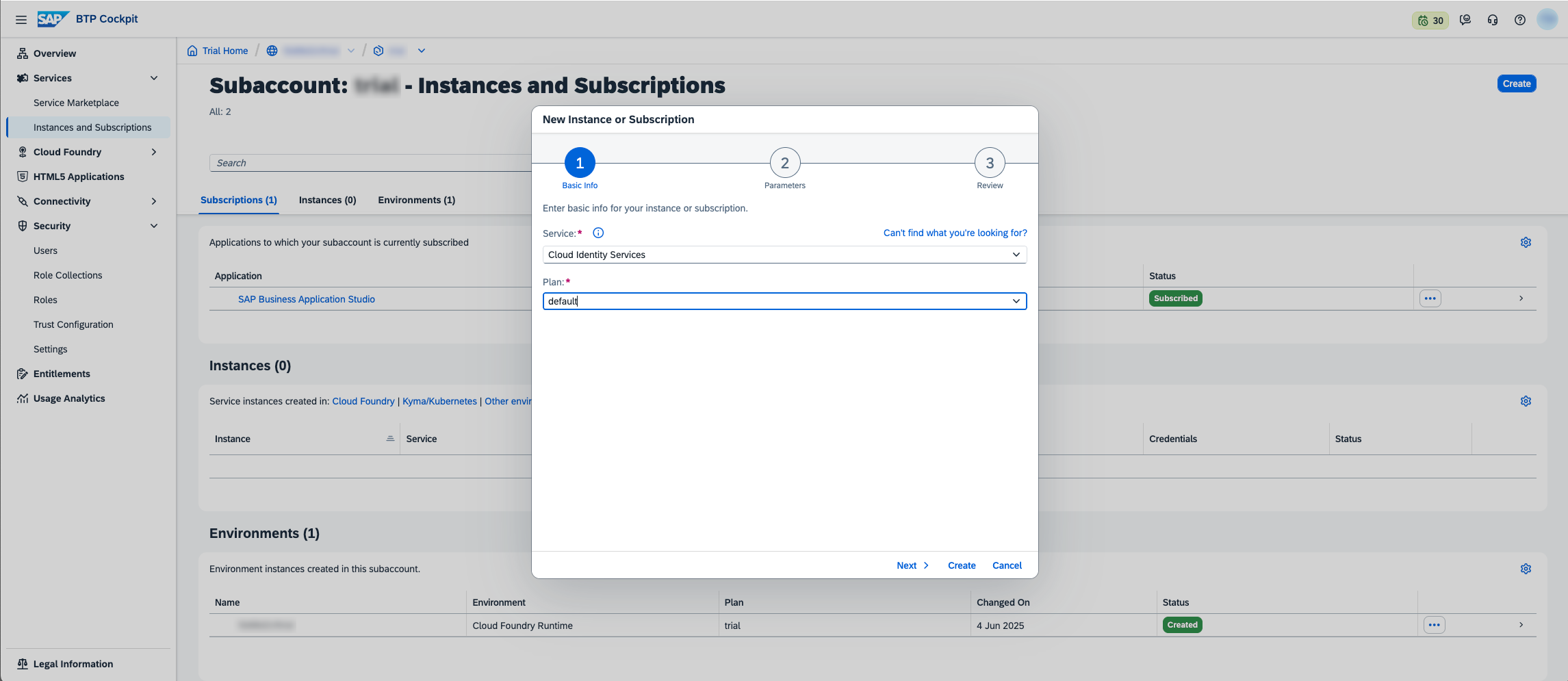
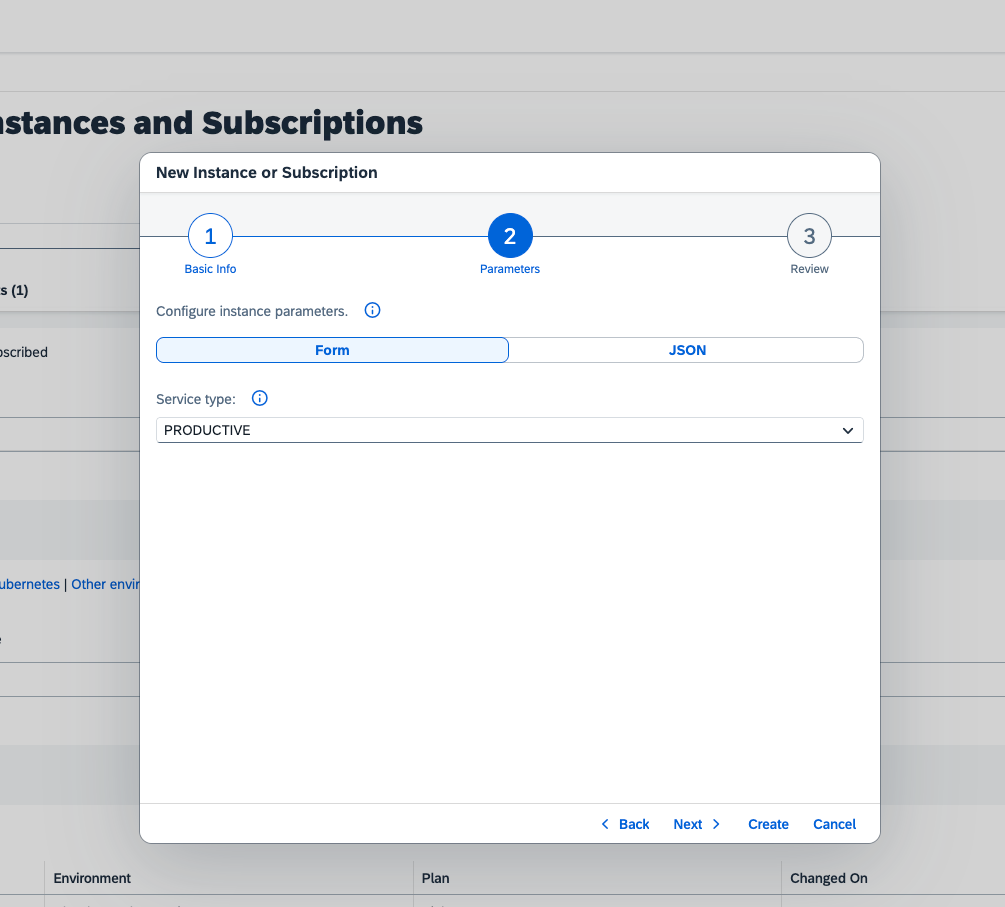
  1. Go to Instances and Subscriptions.
  2. Click Create.
  3. Choose
    • Service: Cloud Identity Services
    • Plan: default
  4. Click Next.
  5. Choose
    • Service type: PRODUCTIVE
  6. Click Create.
3

๐Ÿ” Set Up Identity Authentication (IAS)

Configure Trust

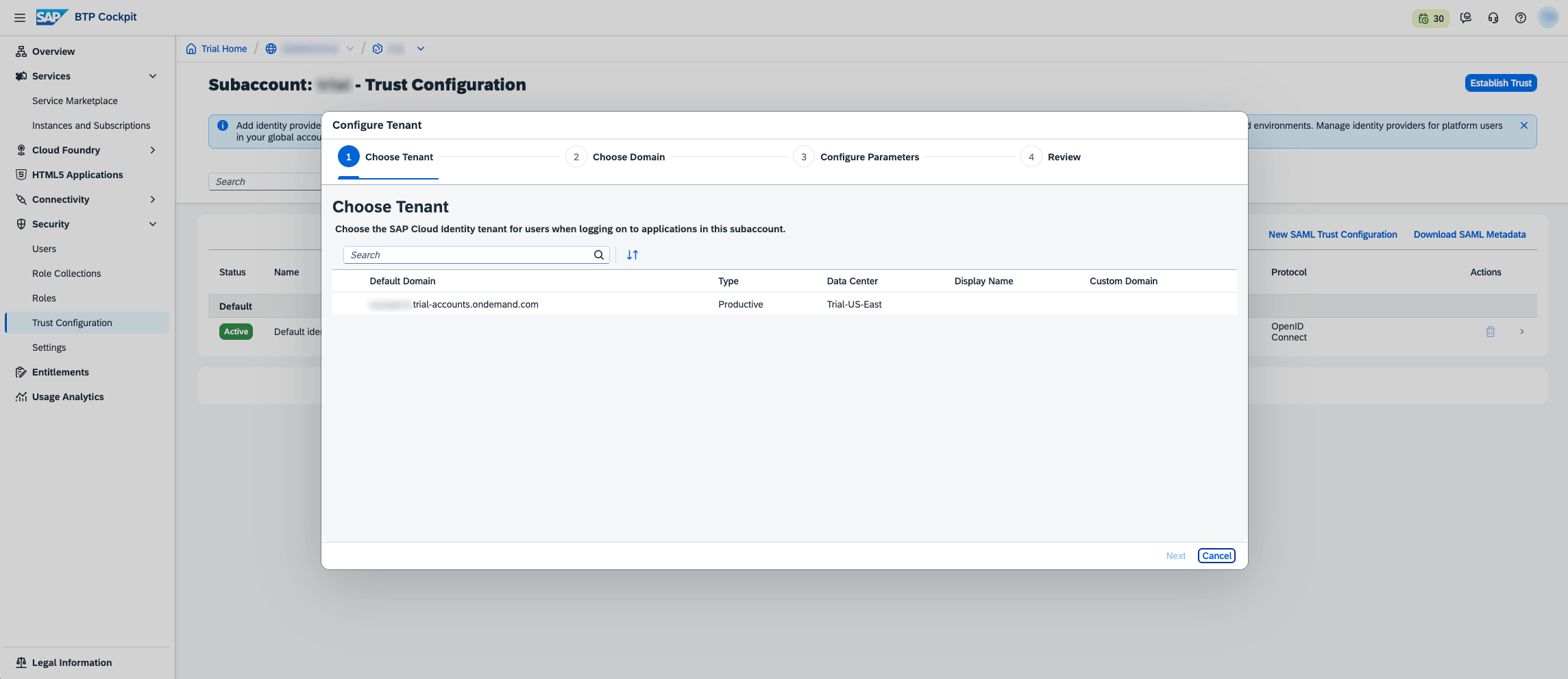
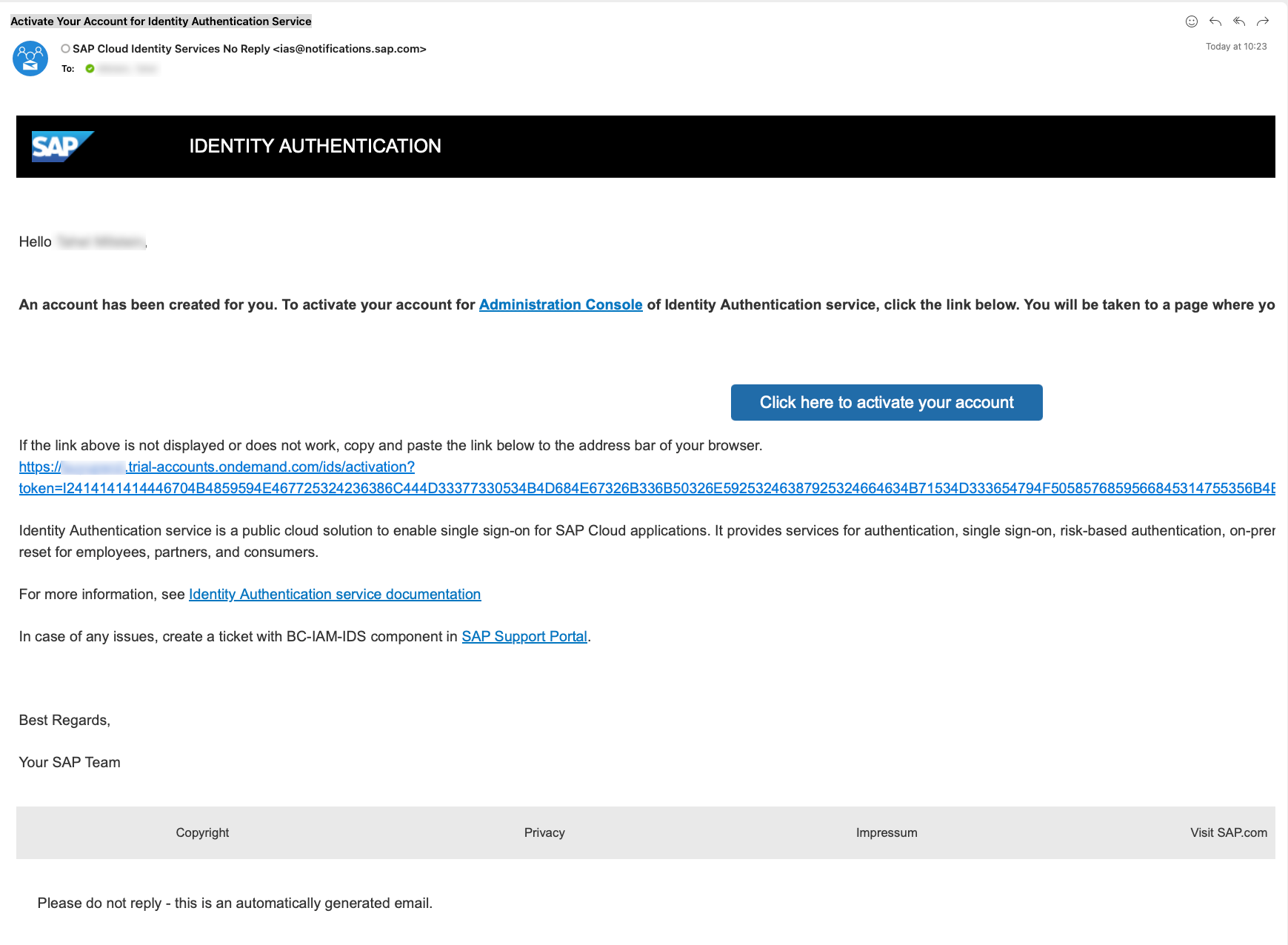
  1. Navigate to Security > Trust Configuration.
  2. Click Establish Trust.
  3. Choose your IAS tenant (e.g., auyupsrzi.trial-accounts.ondemand.com) and continue setup.

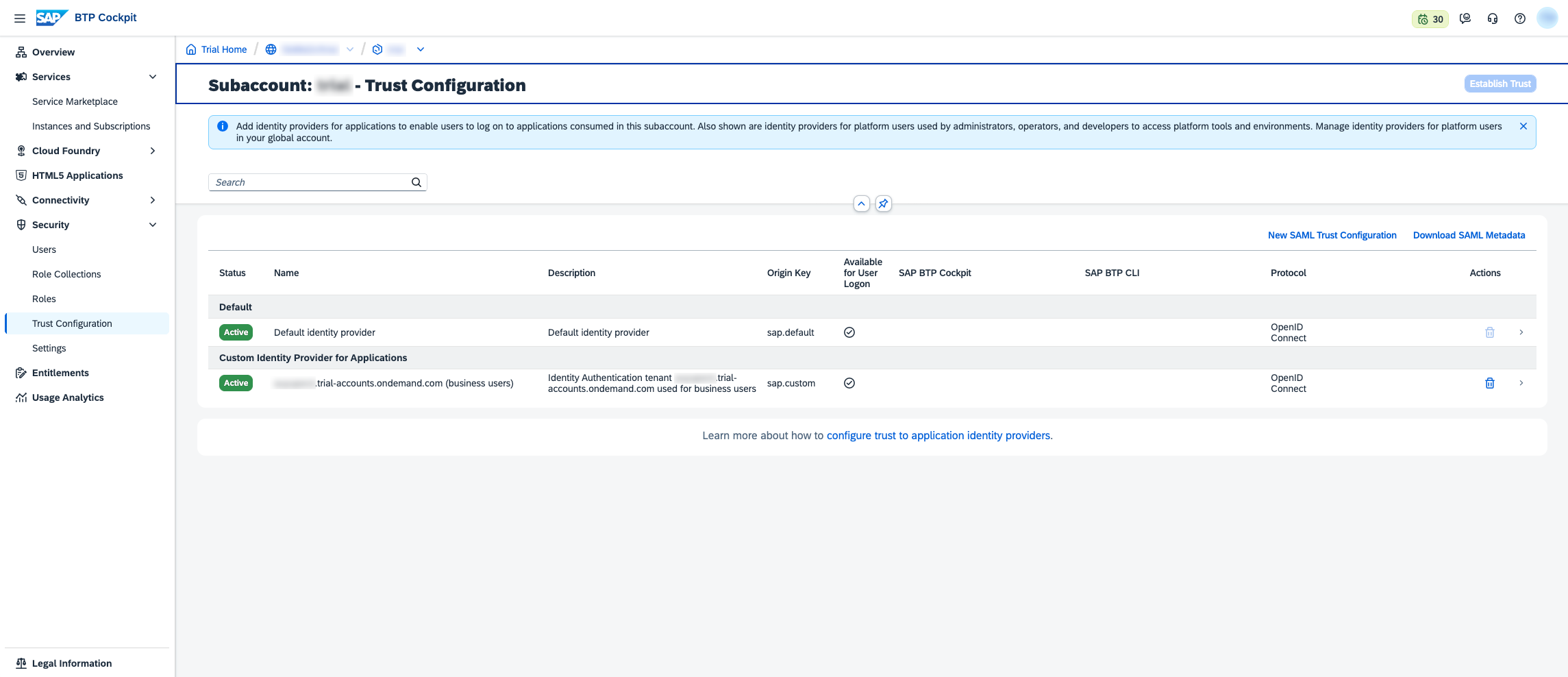
Activate your IAS account after establishing trust, you will receive an activation email from SAP Identity Authentication

  1. Open the email titled "Activate Your Account for Identity Authentication Service".
  2. Click Activate your account.
  3. Set your password to access the IAS Admin Console.
4

๐Ÿ”” Subscribe to Application Frontend service

  1. Navigate to Account Explorer.
  2. Click on your trial subaccount card.
  3. Navigate to Services > Instances and Subscriptions.
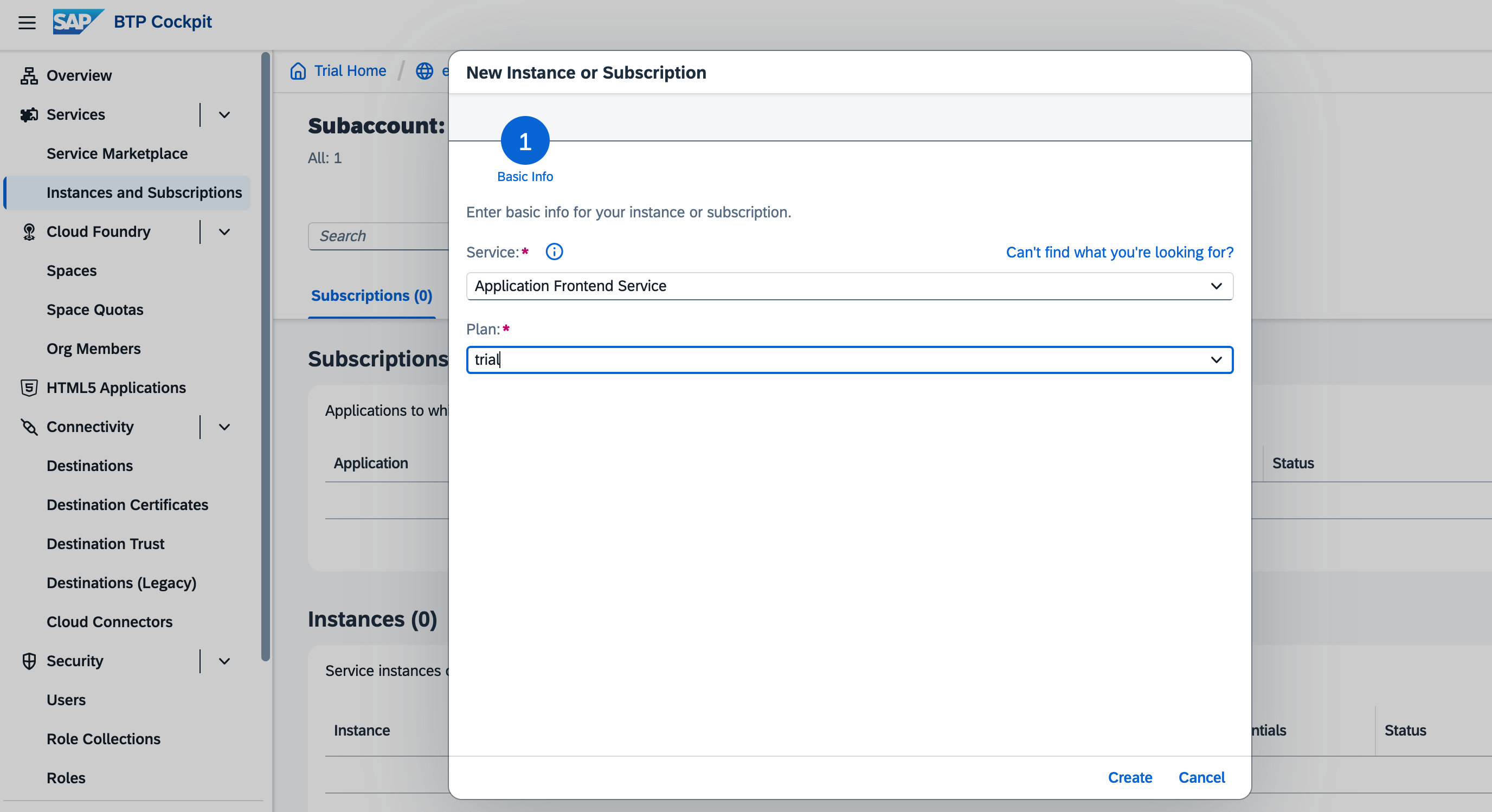
  4. Click Create.
  5. Choose:
    • Service: Application Frontend Service
    • Plan: trial
  6. Click Create.
Select subaccount
5

๐Ÿ” Grant Permissions

  1. Navigate to Security > Role Collections.
  2. Click Create.
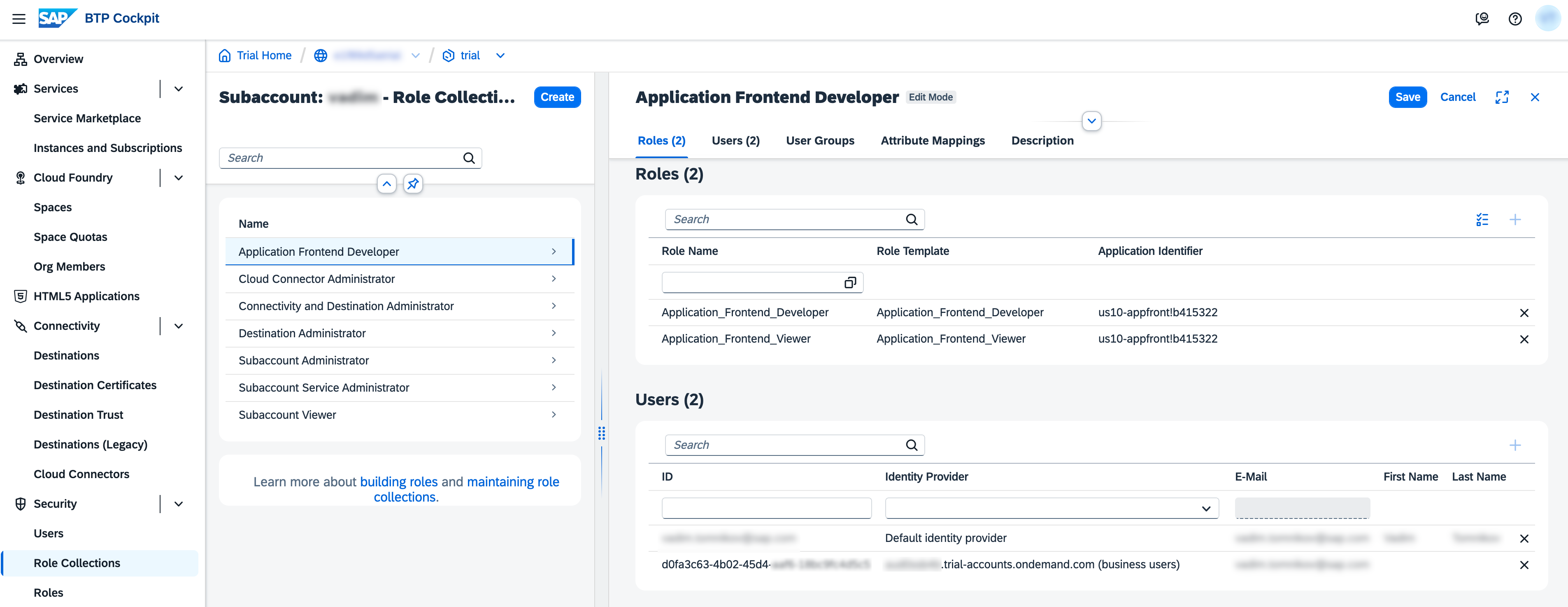
  3. Enter role name: Application Frontend Developer.
  4. Click Create.
  5. Click on Application Frontend Developer row.
  6. Click Edit.
  7. Add the role:
    • Application_Frontend_Developer
  8. Add users:
    • Users from "Default identity provider" - for managing applications in BTP Cockpit
    • Users from "business users" identity provider - for CLI, API and runtime access
  9. Click Save.
  10. Create role collection
6

๐Ÿ‘€ Check Access to Application Frontend UI

  1. Navigate to Security > Users.
  2. Select your user from Default identity provider.
  3. Verify that there is an Appication Frontend Developer role in the list of role collections.
  4. Sign Out from BTP Cockpit.
  5. Sign In to BTP Cockpit.
  6. Navigate to your trial subaccount.
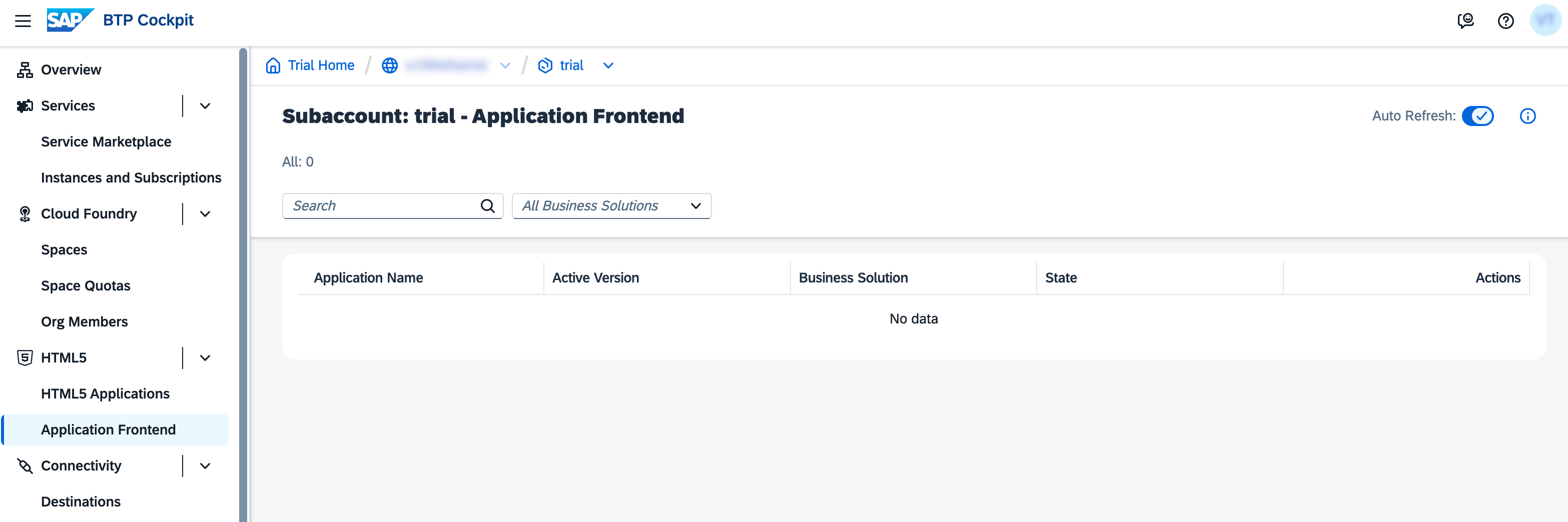
  7. Verify that there is a new navigation entry HTML5 > Application Frontend.
Application Frontend UI
7

Install Application Frontend CLI

  1. Make sure you have Node.js (โ‰ฅ22.6.0) installed on your local environment.

    node --version
  2. Install Application Frontend CLI using command below.

    npm install -g @sap/appfront-cli

What's Next?

โœ… Sign-in with IAS

Once IAS is set up and trusted, you can now use IAS as the identity provider for your applications, CLI and API access

๐Ÿš€ Create and Deploy Apps

Now you are ready to proceed to exercises, implement, deploy and manage applications with Application Frontend service

๐Ÿ“˜ Resources

IAS Identity Authentication

Complete documentation for SAP Cloud Identity Services

Read More โ†’

๐Ÿงช BTP Trial

Learn more about SAP Business Technology Platform Trial

Read More โ†’

AF Application Frontend

Overview and documentation for Application Frontend service

Read More โ†’